What makes it different
There are plenty of compressors already. Three things set this one apart.
1. It doesn't just imitate the harmonics
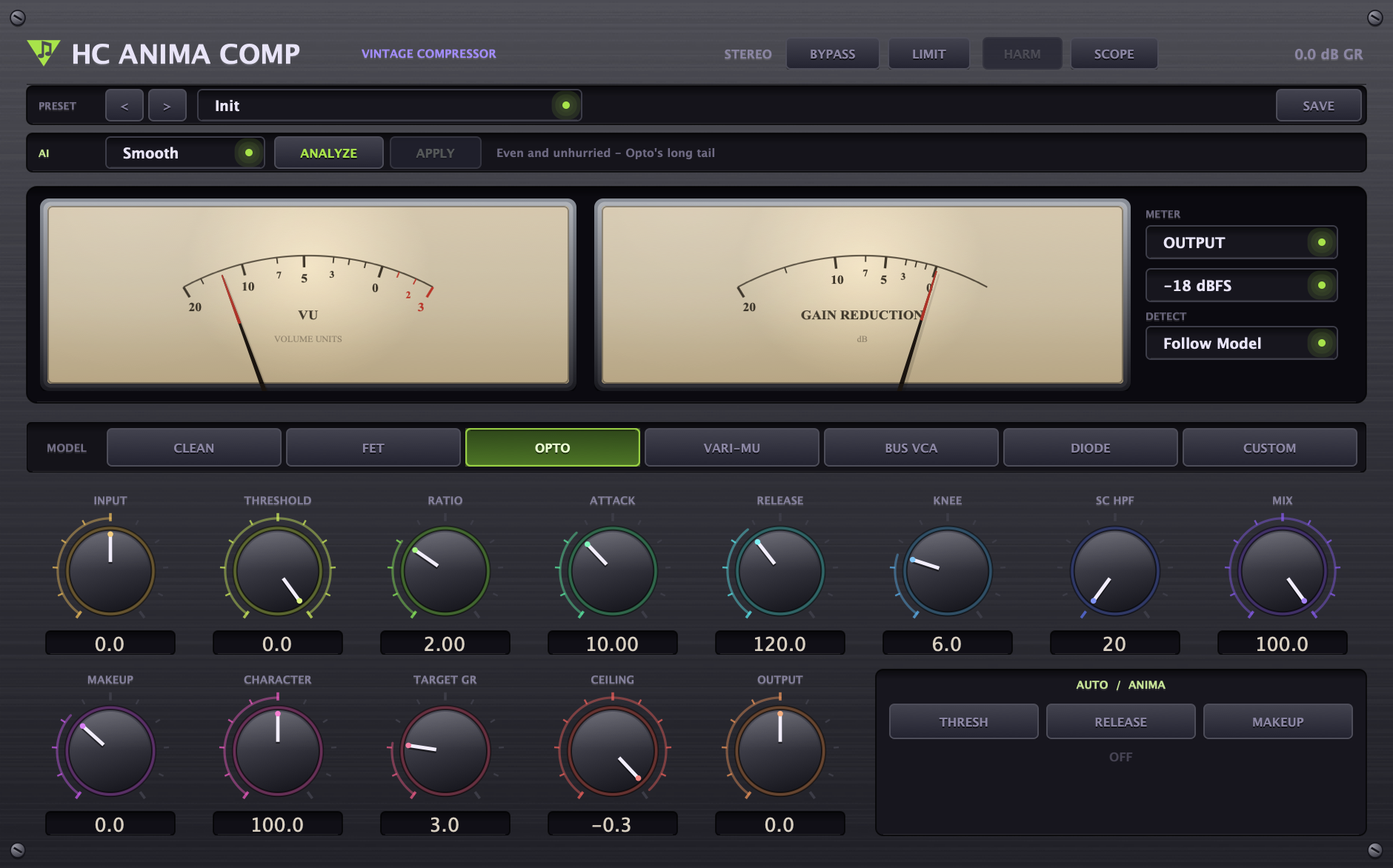
Half of "that compressor sound" is harmonics, but the other half is detector behavior. Match only the harmonics and you get something that sounds like a filter on top of a clean compressor. That is why each model has its own release structure, knee, and level-dependent ratio — Opto's two-stage release and Vari-Mu's self-adjusting ratio are the two most important lines in this product.
2. Styles, not presets
A preset pours in the numbers it was saved with. Whether it's a whispered vocal or a snare, the threshold is -20 dB — one of the two is guaranteed to be wrong. With a style you pick only the result you want, and it measures the sound coming in right now to set the numbers. For a whisper, the threshold follows it down; for a snare, the attack follows it later.
3. It can explain why that value
The style rules are not learned weights — they are written out as plain rules in the code. A compressor that can't explain why it chose a value is one you can't trust in a mix. The scope window doesn't draw an approximation made for show; it draws the values actually in operation right now — keep them separate and they drift apart eventually, and from that point the window starts lying.
Seven models
They are named by circuit type (topology), not by the names of real hardware. Those names are trademarks that are still alive today, and measuring circuit behavior to build an independent implementation is a different matter from putting someone else's trademark on a product. For engineers, the circuit type is arguably the more accurate name anyway.
| Model | Character | Where to use it |
|---|---|---|
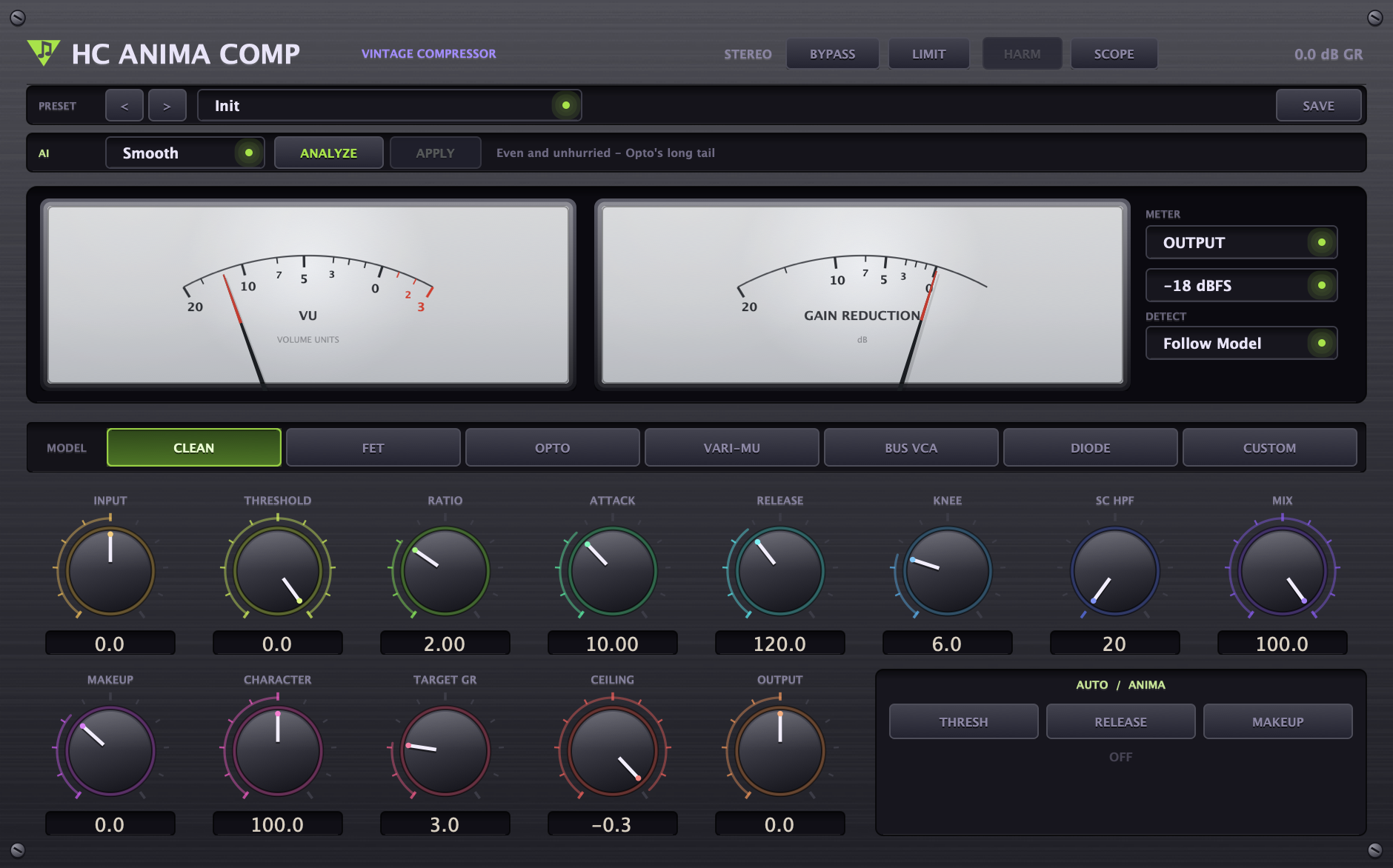
| CLEAN | Adds no color. Only handles level — modeling is switched "off" | The reference point for comparison. That is why it is the default |
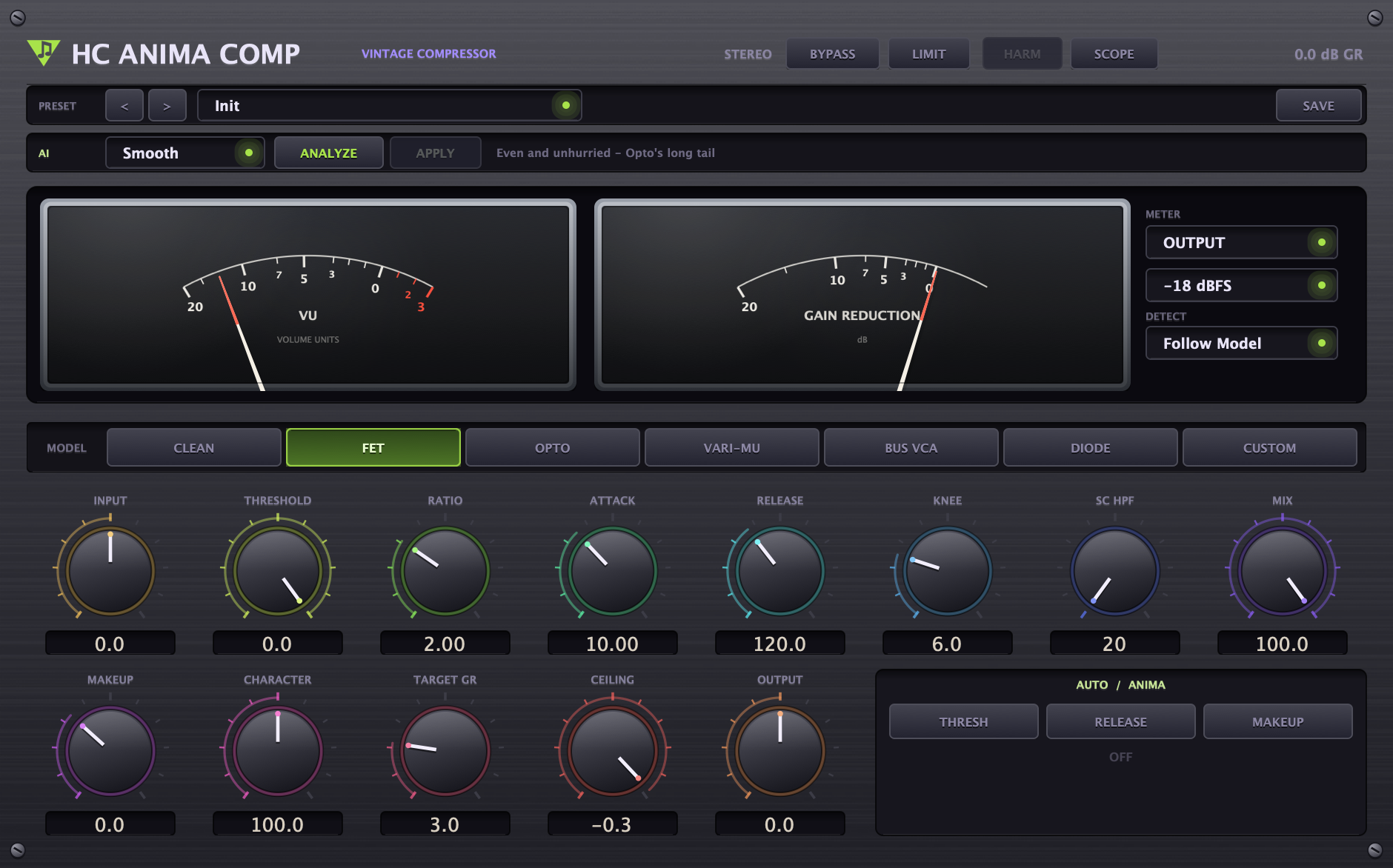
| FET | The fastest. Catches consonants and pulls them forward | Vocals, snare, room mics |
| OPTO | Slow and even. The long tail of a two-stage release | Vocals, bass, acoustic |
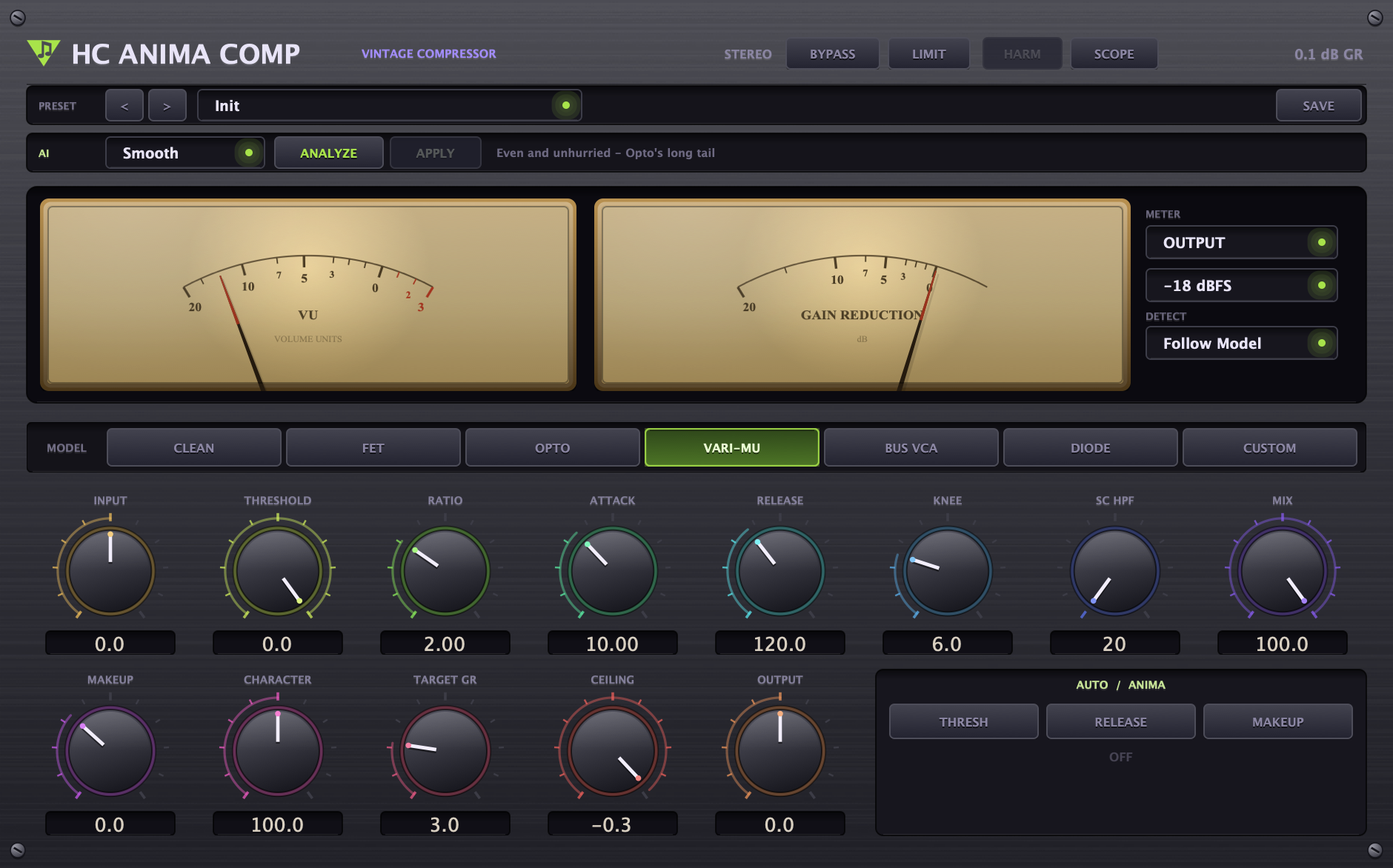
| VARI-MU | The weight of tubes. The ratio grows by itself as the level rises | Mix bus, master, drum bus |
| BUS VCA | Holds things together without being noticed — "glue" | Drum bus, mix bus |
| DIODE | Rough and thick. The detection high-pass never goes below 60 Hz, so the low end isn't disturbed | Drums, parallel compression |
| CUSTOM | Reads harmonics from the knobs, not from a table — you draw the 2nd through 7th by hand | When you want to make your own color. See "Build your own harmonics" below |
How to use it — from install to your first mix
Read just this far and you can start using it right away.
Install — open it and just click "Continue"
After you purchase, you can download HC-Anima-Comp.pkg from My Library. Double-click to open it, then Continue → Install, and you're done. The VST3 and the AudioUnit each go to their own place automatically.
If it asks for your administrator password partway through, enter it — the plugin goes into the folders shared by all users.
When the install finishes, restart your DAW so it shows up in the list. Look for "HC Anima Comp" in the plugin list.
Logic runs an AU validation the first time (tens of seconds).
The installer is notarized by Apple, so you won't see an "unidentified developer" warning.
Register your license — email and key
Once your payment is confirmed, your license key appears in My Library. You don't have to wait for an email — just sign in and check. You enter the email you purchased with together with that key, in the window that appears the first time you open the plugin.
Before you enter a key, the plugin runs as a demo — the sound fades down for 0.6 seconds every 40 seconds.
It isn't broken; it's the trial limit. It is done as a fade so there are no clicks.
The key is tied to your email, and capitalization, hyphens, and line breaks are ignored when it's read. You can type it in by hand.
Push into it with INPUT
First, use INPUT so the meter needle swings around 0 VU. INPUT sits before the compressor, so it affects the threshold, the detection, and the harmonics.
Pushing hard in and bringing it back down with OUTPUT is the standard way to use vintage gear. That is how the harmonics come alive. What 0 VU means in dBFS is chosen in the -18 dBFS box on the right (-18 broadcast/Europe / -20 US post / -14 today's streaming reference).
Pick a model — and compare by ear
The default is CLEAN. If the sound changed the moment you inserted it, you couldn't "compare", and without comparing you can't know what the character is worth.
Set up your settings with CLEAN, then click through FET → OPTO → VARI-MU and listen. Even at the same knob values, the way it grabs changes. The CHARACTER knob sets the amount of color — it opens up to 200% because there are times you really do want to push it harder than the original hardware.
The model multiplier is applied to the attack and release knobs. Choose FET and the same 10 ms knob works as 1.5 ms — that is how the time constants of the real hardware are to begin with. Watch the meter needle, not the knob number.
Build your own harmonics — CUSTOM
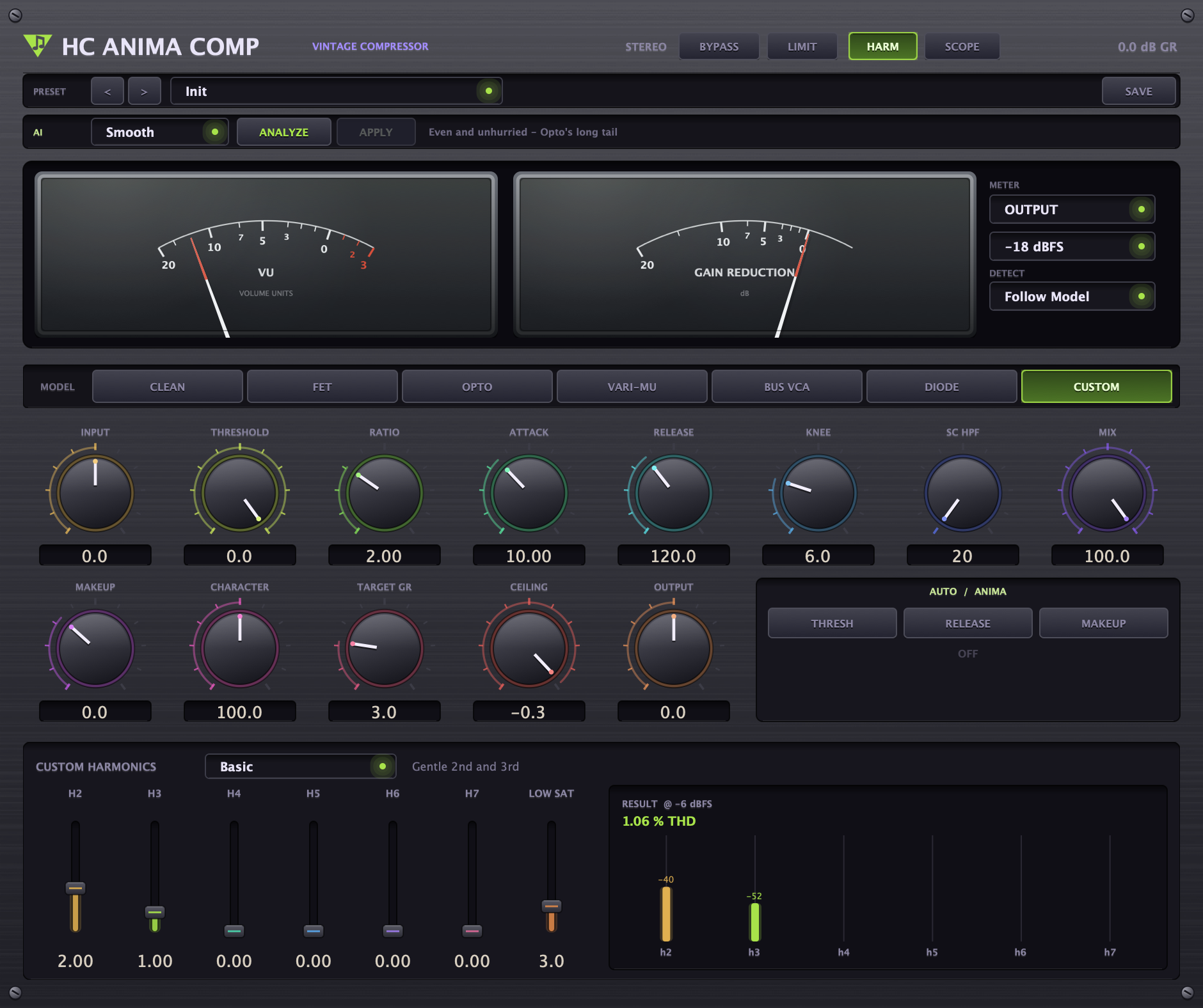
The six models use the harmonics "written in a table". The seventh, CUSTOM, reads them from the knobs instead — press the HARM button at the top to open the edit drawer.
· H2 ~ H7 — how many percent for each order, from the 2nd to the 7th
· LOW SAT — how much less the low end is colored
· On the right, the THD of the sound being produced right now and a bar for each order appear in real time
The default is 2nd 2% · 3rd 1%. If everything were left at 0, choosing CUSTOM would change nothing and it would
read as "broken", so a gentle starting point is built in.
The 5% upper limit is 1.4 times that of the strongest model (Vari-Mu 2nd at 3.5%) — raise all six and it turns into
"crackle" unrelated to musical harmony. CHARACTER multiplies on top of this, so in practice it can go up to twice that.
Even orders (2, 4, 6) sound thick; odd orders (3, 5, 7) sound edgy. Start by raising only the 2nd a little.
Styles — pick the "result" instead of numbers
Choose the result you want in the top row, then press ANALYZE while the sound is playing. While it listens the button turns into STOP, and when it has heard enough you use APPLY to apply it.
· Smooth even and uniform · Forward bring out consonants, pushed to the front
· Punch let the hit through, tighten the tail · Glue bind a bus without being noticed
· Thick the weight of tubes, only on the loud parts · Clear level only, no color
If "TOO QUIET" appears, the sound was too low to measure — check playback and press it again. It's best to let it hear the loudest section. Measure on the chorus and it fits the verse too, but not the other way around.
Set the depth with TARGET GR
How much it grabs is decided with the GAIN REDUCTION meter. A typical starting point is 3-6 dB for vocals and 1-3 dB for buses.
If hunting for the threshold by hand is a hassle, turn on THRESH in the AUTO / ANIMA section. The threshold finds its own way to the amount of reduction you set in TARGET GR. Turn on RELEASE and it reads the sound's crest (peak/RMS) to lengthen or shorten the release; turn on MAKEUP and it fills the RMS difference between input and wet — measured, not guessed.
All the automation is off by default. If something moves on its own the moment you insert the plugin, you can no longer explain why the sound is the way it is. Turning it on should be the decision of whoever is using it.
Parallel compression with MIX
Compress hard, then bring MIX down to 40-60% and you get a "New York comp" — you keep the dynamics of the original and gain only the thickness. It works especially well on a drum bus.
MAKEUP applies to the wet signal only, and OUTPUT applies to the "final" signal after MIX. Mix the two up and your parallel ratio gets tangled.
When the kick shakes the compressor — SC HPF
SC HPF is used for detection only and does not touch the audio path. When the low end shakes the whole compressor, raising it to 80-150 Hz calms the pumping.
DETECT defaults to Follow Model — it follows the way the chosen model originally detects (Opto uses RMS, FET uses Peak). Pick Peak/RMS by hand only when you want to deliberately go against it.
On the master, turn on LIMIT
A limiter is a different thing from raising the ratio to 20:1. A compressor reacts after the threshold is crossed, but a limiter looks ahead and brings the level down before it is crossed. Going over the ceiling on the master is an accident you can't undo, so that difference is everything.
CEILING defaults to -0.3 dB. Leave it at 0.0 and true peaks go over during mp3/AAC encoding. For headroom against streaming specs, use -1.0.
To see why it sounds that way — SCOPE
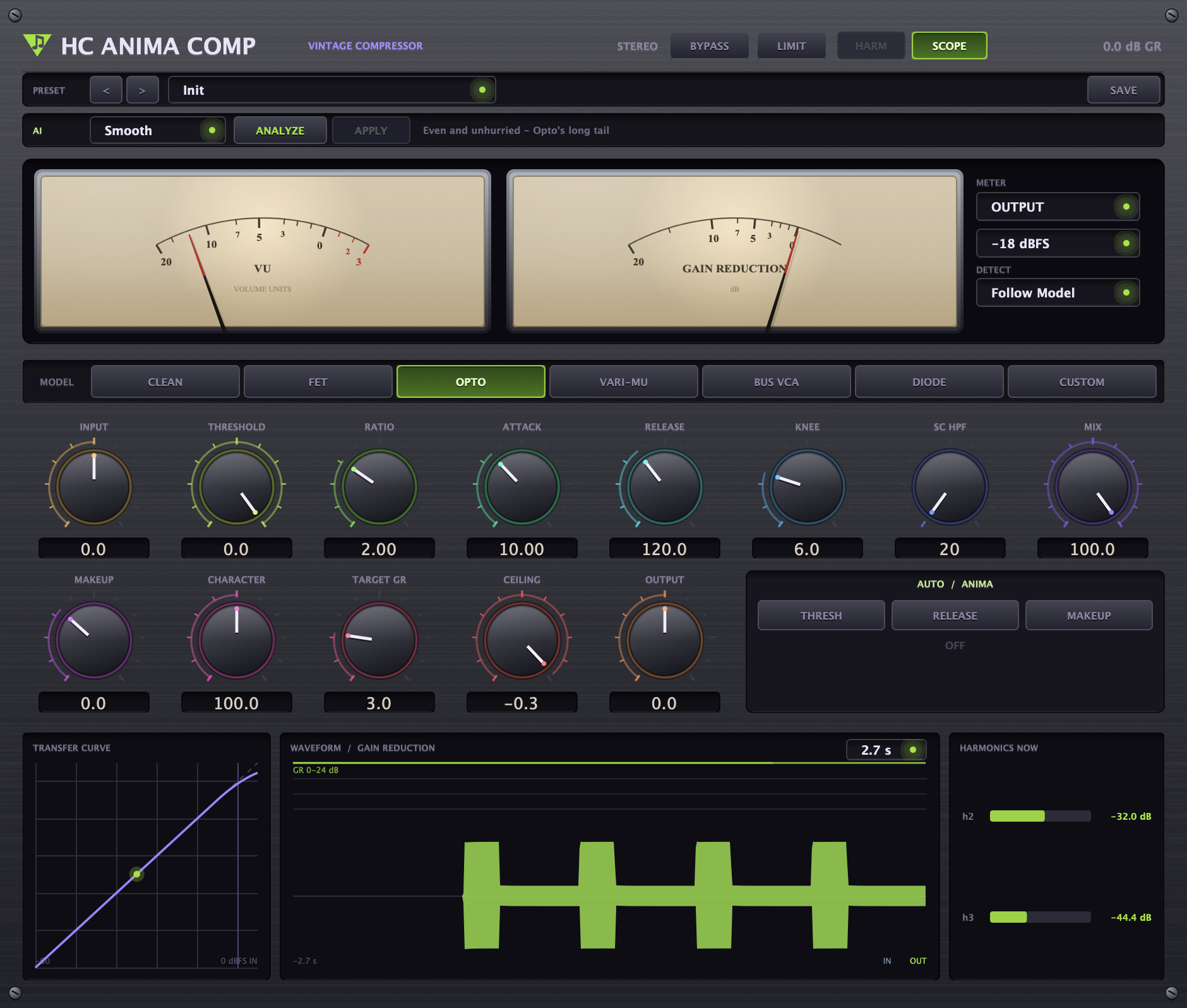
The meter needle tells you only "how many dB it is cutting right now". Press SCOPE and three things you can't tell from that alone unfold.
· TRANSFER CURVE — the "shape" of the threshold, ratio, and knee. Vari-Mu's level-dependent ratio shows up only as the curve bending
· WAVEFORM / GAIN REDUCTION — draws the reduction over the waveform. You can see where the attack catches. On the right, choose a width of 0.7 / 1.4 / 2.7 / 5.5 seconds, and compare before and after with IN / OUT
· HARMONICS NOW — how many dB of 2nd and 3rd harmonic it is adding right now
It's a good window to learn with. What you read about in the e-books is confirmed here as a picture.
The window gets taller, so on a 13-inch screen reducing UI size to about 80% fits it just right — the size you set is saved with the song and stays the same next time.
Knob reference
When you're unsure, look here.
| Knob | What it does |
|---|---|
| INPUT | Level before the compressor. Affects threshold, detection, and harmonics. Push hard and bring it back with OUTPUT — the standard approach |
| THRESHOLD | Above this line it starts to grab. Default 0 dB — you start from a state where inserting it does nothing |
| RATIO | How much of the overshoot is reduced (as a fraction). On Vari-Mu this value grows by itself with level |
| ATTACK | How fast it grabs. The model multiplier is applied (FET is much faster) |
| RELEASE | How fast it lets go. Opto releases in two stages |
| KNEE | The width over which it grabs "gradually" near the threshold. At 0 it bends sharply |
| SC HPF | Removes low end from the detection signal only. The audio path stays as it is. Diode never goes below 60 Hz |
| MIX | Ratio of compressed sound to original. 40-60% = parallel compression |
| MAKEUP | Brings back what was cut. Applied to the wet signal only |
| CHARACTER | Amount of harmonics the model adds. Up to 200% — for when you want to push harder than the original hardware |
| TARGET GR | With AUTO THRESH on, the target the threshold seeks so that it cuts "this much" |
| CEILING | Limiter ceiling. Default -0.3 dBFS |
| OUTPUT | The "final" level after MIX is done |
| H2 ~ H7 | Custom model only. Set the 2nd to 7th harmonics directly in %. The 5% limit is 1.4 times the strongest model (Vari-Mu 2nd at 3.5%) — CHARACTER multiplies on top of that |
| LOW SAT | How much less the Custom model colors the low end (dB). Default 3.0 |
What to use where — starting points
These aren't the answer. Think of them as "start here, then fix it by ear."
🎤 Lead vocal
FET · style Forward · GR 3-6 dB. If consonants jump out, slow the attack a little; if breaths get loud, lengthen the release. For a smoother result, use OPTO.
🥁 Drum bus
BUS VCA · style Glue · GR 2-4 dB · SC HPF 80-120 Hz. If you need thickness, grab hard with DIODE and set MIX to 50%.
🎸 Bass
OPTO · GR 3-5 dB · relaxed attack. If the low end shakes the compressor, setting DETECT to RMS sounds more natural than raising SC HPF.
🎛 Mix bus · master
VARI-MU · style Thick or Glue · GR 1-2 dB. Grab a lot here and the mix goes flat. At the very end turn on LIMIT with CEILING at -0.3 (-1.0 for streaming).
FAQ
Which DAWs does it work in?
Any macOS DAW that loads VST3 or AudioUnit — Logic, Cubase, Ableton, Studio One, Reaper, and the HUMANCODE DAW. It is a universal build, so it runs natively on both Apple Silicon and Intel. macOS 11 or later.
What about Windows?
Not yet. Only the macOS version exists for now. When it's ready, we plan to make it available to you under the same purchase — that is how it was done for the HUMANCODE DAW too.
Can I try it?
The plugin has a built-in demo mode — before you enter a license key, the sound fades down for 0.6 seconds every 40 seconds. Apart from that, every feature works exactly the same. A separate demo download is still in preparation.
I installed it but it doesn't show up in my DAW's list
1. Check that you restarted your DAW — this is the cause most of the time.
2. Logic runs an AU validation on first launch. It takes tens of seconds, and the plugin appears in the list only after it finishes.
3. If you cancelled the administrator password prompt during install, the install did not finish. Open the pkg again.
4. To check by hand, HC Anima should be inside /Library/Audio/Plug-Ins/VST3 and
/Library/Audio/Plug-Ins/Components.
If it still doesn't work, contact us (mixingart@naver.com).
I lost my key / I changed computers
The key is tied to the email you purchased with, so it can be reissued. There is no limit on the number of machines — install it freely on your own computers. Your key and download are always in My Library on maebook.com; if you can't find them, contact us (mixingart@naver.com) with your email and we will send it again.
Does a HUMANCODE DAW license open it?
No. Each product has a different key pair. The reverse is true as well — you need to buy each one separately.
What about updates?
If you buy 1.0, 1.x updates are free. Download the new version again from My Library; your license key stays the same.